Order Item Edit Help
There are times when certain information in one or more order items need to be updated. Using this function will provide a way to update a single order item or many order items en masse. In order to update items, a template order needs to be used as the base for updating it and subsequent orders. The following sections describe detailed instructions on how to use this function to achieve the desired updates.
There are two (2) ways to access this web-based application. First, by directly entering URL
https://orderitemsupdate.anewbiz.net in your browser, or second, by selecting option
Order Item Update from the Work Order web application as shown below.
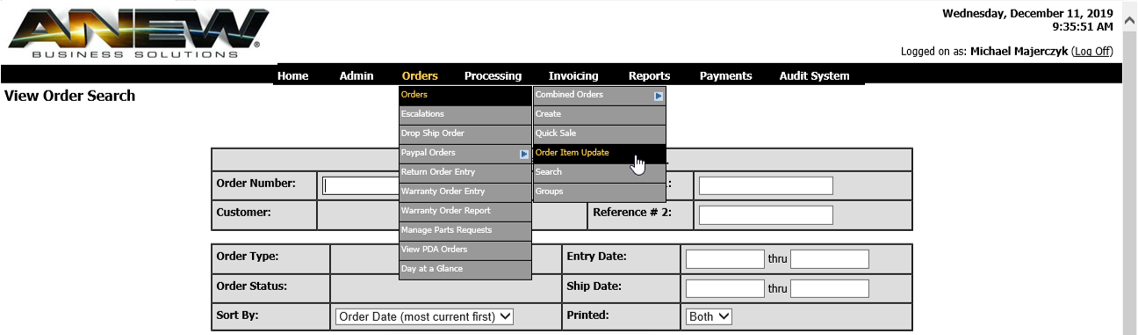
Orders to Update
The home page, shown below, allows you to provide one or more orders to update. The first valid order in the list will serve as a template order for which to use as the base for updating the orders in the list.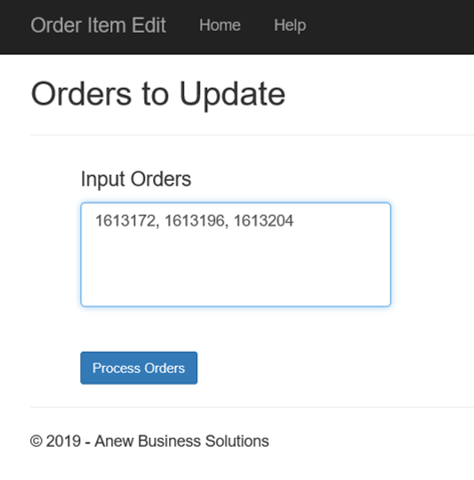
- Input Orders
- Specify one or more orders for updating. For example, if you have several orders that need to ship an LG Rebel 3 mobile phone to the customer instead of the currently specified LG Rebel 2 mobile phone you just need to specify any one or more order numbers in this textbox. The first valid order in the list will be used as a template to change all the orders in the list.
Order Item Update
If the template order is found, you be presented with the following page.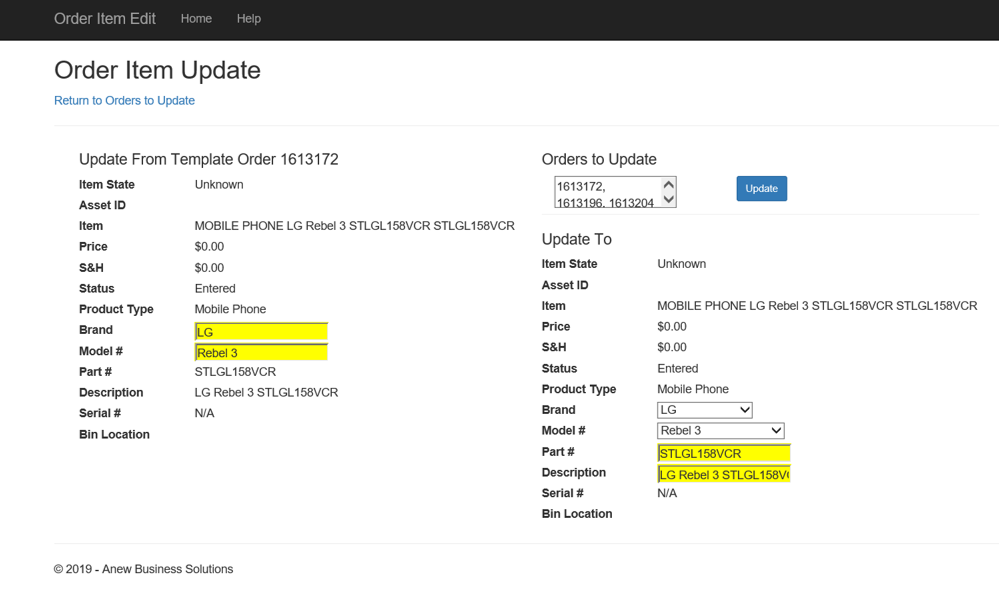
The page has three (3) major sections as described below.
Update From Template Order #######
This section shows the order item detail for the template order . You can’t change anything is this section, it is used as the model for subsequent updating. The yellow highlighted data represents key information that is used to derive what can be chosen in the Update To section as described below.Orders to Update
This textbox allows you to specify one or more orders to update based on the template order. Each order listed will have its basic information (i.e. Brand, Model #, Part # and Description) updated as specified in section Update To as described below. Note: This textbox is prepopoulated with the list from the Input Orders textbox on the home page described above. You can remove or add orders prior to submitting to processibng the orders for update.Update To
This section allows you to specify what product information you want to change the specified orders to as described below.- Brand
- The Brand drop-down is populated with available product brands. By default, the selected brand is based on the template order #. You can select any brand you want from the drop-down. When you select a brand the model # drop-down is then repopulated with those model numbers for the selected brand, by default, the first model # is selected and the product’s part # and description are also populated.
- Model #
- The Model # drop-down contains all available models for the selected brand. By, default, the model selected is based on the template order specified. You can select any model you want as a replacement. When you select a model the part # and description are automatically populated for the selected model #. Note: You can’t alter the part # or description as they are based on the selected model #.